From Zero to Website with Quarto
Cascadia R Conf 2026
From Zero to Website with Quarto
Find the Slack channel
#workshop-quarto-2026in the main conference SlackCheck you’ve completed the steps on the Pre-work page.
Workshop website
Workshop website: https://cwickham.github.io/cascadia2026
Hello, I’m Charlotte Wickham
 @
@ 
Workshop website
Your Turn
Introduce yourself to your neighbors:
- Name
- Location
- What you need a website for
Check you are all set up
Outline
Goal: You create a website with Quarto
- Don’t start from scratch
- Add pages and customize navigation
- Make the style your own
- Publish
- Use listings for “lists” of content
BREAK: 3:00 – 3:15pm
What to expect
My turns: I’ll use slides, and live code to demonstrate ideas.
Your Turns: You practice what you’ve just seen.
Ask questions:
- During Your Turns ( Pink Post-it: Send help!)
- After Your Turns
- In Slack channel
1. Don’t start from scratch
Demo: Start from a template
From a new empty project:
Your Turn: Get the starter template
Start a new project.
RStudio > New Project
Positron > New Folder from Template > Empty ProjectGet the template:
Create a subdirectory for template? No
Open and preview
index.qmd. (Put up orange Post-it)Match the content in
index.qmdto the preview.
Demo: Exploring index.qmd
Render/preview
index.qmd. It becomesindex.html, your homepage.Regular Quarto document with:
- YAML Header
- Content, possibly including code cells
Workflow: Edit, render/preview
Uses an
abouttemplate: https://quarto.org/docs/websites/website-about.htmlOther templates:
jolla,trestles,solana,marquee, orbroadside
Your Turn
Edit index.qmd:
- Change the
titleandsubtitle - Try a different template:
jolla,trestles,solana,marquee, orbroadside - Edit, add, or remove items in
links. Find othericons at https://icons.getbootstrap.com/ - Challenge: Use a different
image, and editimage-alt
Spare time? Edit the content of the page
Demo: Use a different image
- Move new image into project
- Replace path
- Edit
image-alt
Paths in a .qmd are relative to the location of the .qmd
What is a Quarto website?
A minimal website only needs two files:
What else is in this template?
2. Add pages and customize navigation
Demo: Add a page
New Quarto Document:
projects.qmdFile path becomes URL path:
{ site url }/projects.html
Demo: Add navigation
_quarto.yml: configuration file
Folder structure determines URLs
{ base url }: http://localhost:XXXX when previewing locally
Your Turn
- Add a page
- Add a link to the page in the navigation
- Skim https://quarto.org/docs/websites/website-navigation.html. What other types of navigation are available?
Spare time: Add content to the page
Demo: Navigation
- Put items on
left - Switch to a
sidebarwithcontentand back again - Edit
tools
Quick reference: https://quarto-tdg.org/websites.html#other-navigation-elements
3. Make the style your own
Use brand.yml: Color
_brand.yml
Demo: Change primary
Positron command: Show or Focus Standalone Color Picker
Brand Guide: https://quarto.org/docs/authoring/brand.html
Use brand.yml: Fonts
_brand.yml
Demo: Add these to _brand.yml
bunny: Bunny Fonts, zero-tracking and no-logging policy https://fonts.bunny.net
Demo: Check accessibility with axe
Once you start playing with colors it’s easy to create contrast issues.
Check with axe-core by adding:
Remove before publishing!
Your Turn
Edit
_brand.ymlto customize colors and fontsEnable the
axechecks to check for contrast issues
Brand Guide: https://quarto.org/docs/authoring/brand.html#brand-elements
Use brand.yml: Code
If your pages have code, you will probably want to tweak monospace options:
Use brand.yml: Dark mode
Add light and dark to colors to add a dark mode toggle to your site:
Name colors under color: palette to more easily refer to them
Sometimes you might need to add SCSS
Apply styles.scss to all pages:
See _examples/brand-scss.
Aside: The three parts of _quarto.yml
_quarto.yml
project: # Project options
  type: website

website: # Website options
  title: "My Website"
  search: false
  open-graph: true # https://quarto.org/docs/websites/website-tools.html#open-graph
  page-footer: "Made with ❤️ and Quarto"
  navbar:
    right:
      - text: Home
        href: index.qmd
    tools:
      - icon: github
        text: Github
        href: https://github.com

format: # Page 'html' format options
  html:
    theme: [brand, styles.scss]
Reference: Projects > Websites, and Formats > HTML
4. Publish
Demo: Use quarto publish
Other venues: gh-pages, netlify, connect
Updates? Re-run quarto publish
Pick one of:
- Your Turn: Posit Connect Cloud
- Your Turn: GitHub Pages
Your Turn: Posit Connect Cloud
Publish your site to Posit Connect Cloud:
Challenge: find the setting to customize the URL.
Your Turn: GitHub Pages
Make your project a Git repo.
Commit, and push to GitHub
Publish to GitHub Pages:
Which venue is right for you?
| Provider | Private Source | Private Site | Custom Domain |
|---|---|---|---|
| Posit Connect Cloud | ✔️ | Paid plans | Paid plans |
| GitHub | Paid plans | GitHub Enterprise Cloud only | ✔️ |
| Netlify | ✔️ | Paid plans | ✔️ |
Or Posit Connect if your org has it.
Other publishing workflows
Posit Connect Cloud:
- Use Posit Publisher extension in Positron or VS Code
- Connect directly to GitHub repo
Continuous integration: https://quarto-tdg.org/websites.html#sec-ci
Website metadata: search engines
Set title, description and site-url.
E.g. for this workshop’s website:
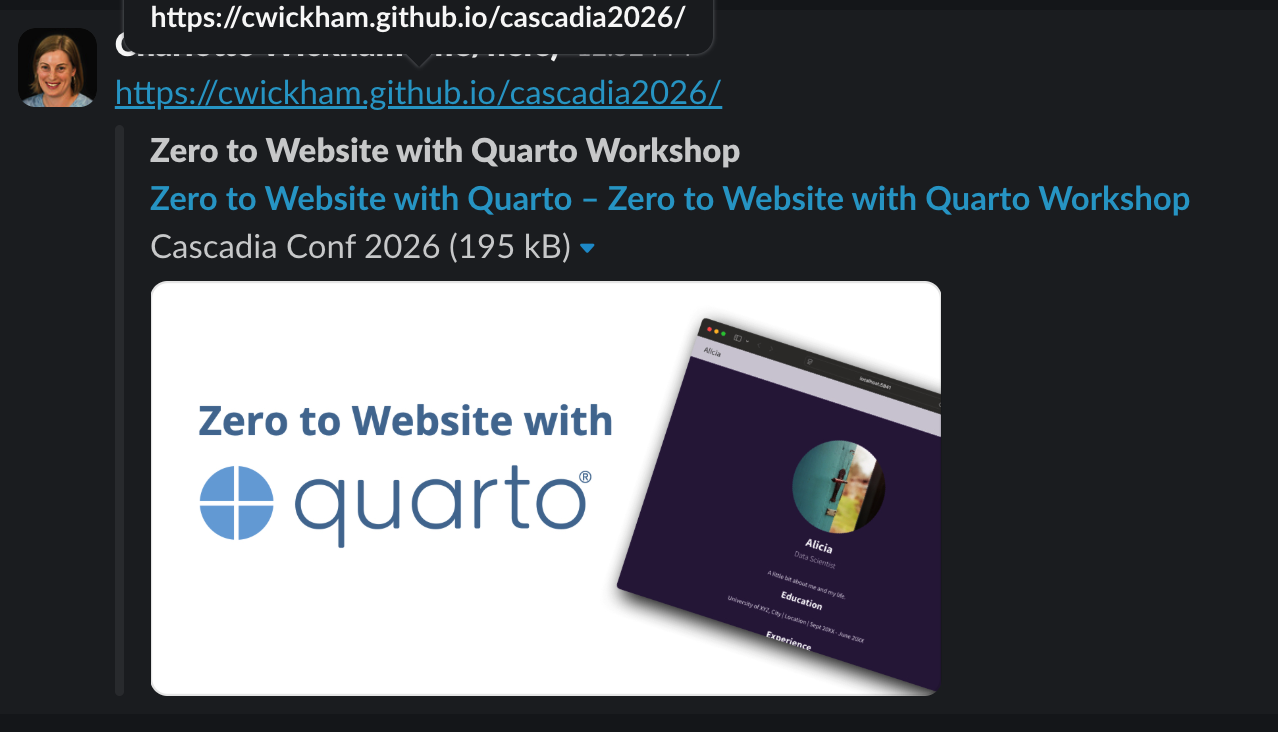
Website metadata: social cards
Add a 1200 × 630 px image and image-alt:
5. Use listings for lists of content
A listing is…
- an automatically generated list of content
- styled via a template, (built-in
type, or customtemplate) - can be included on any page
Use listings for …
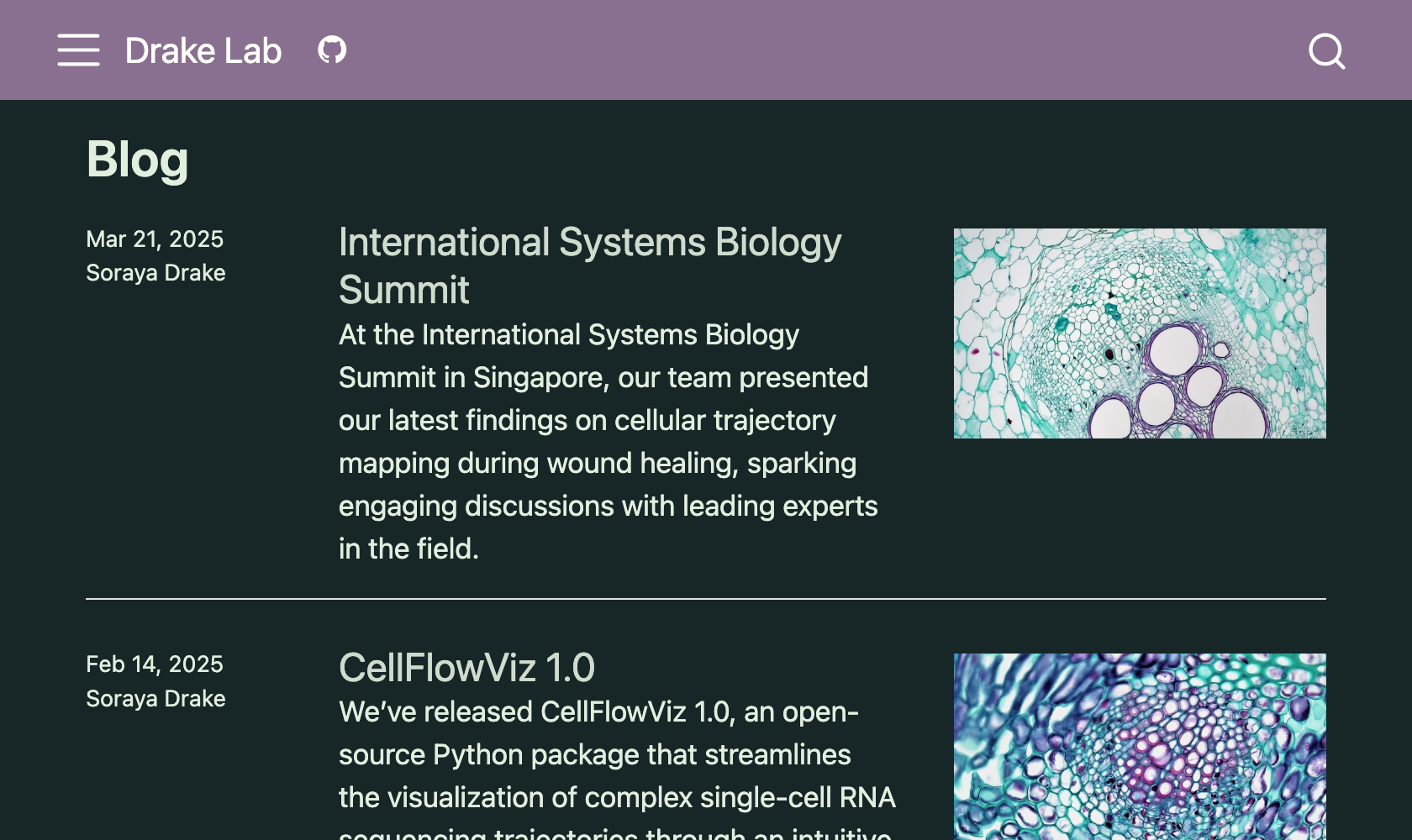
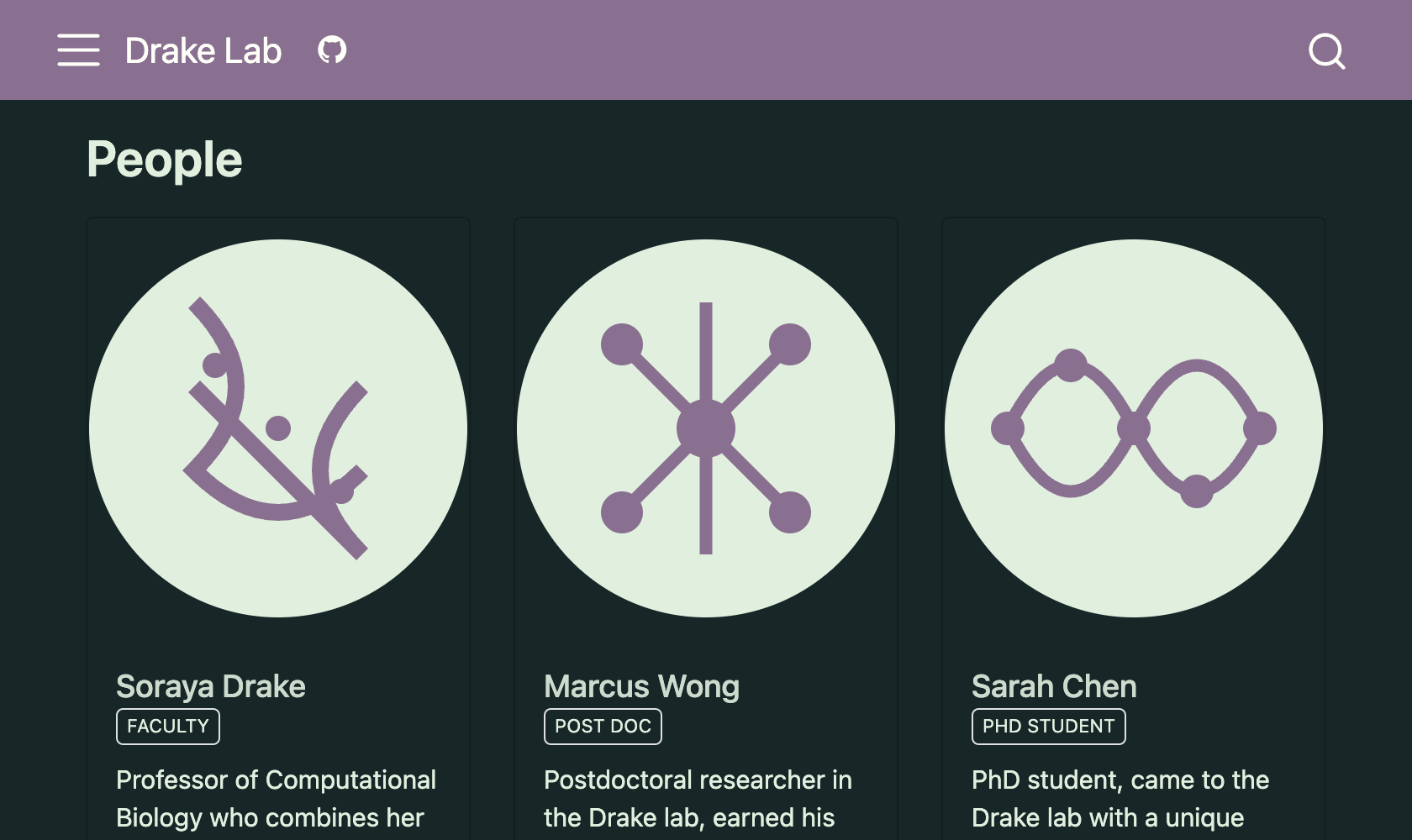
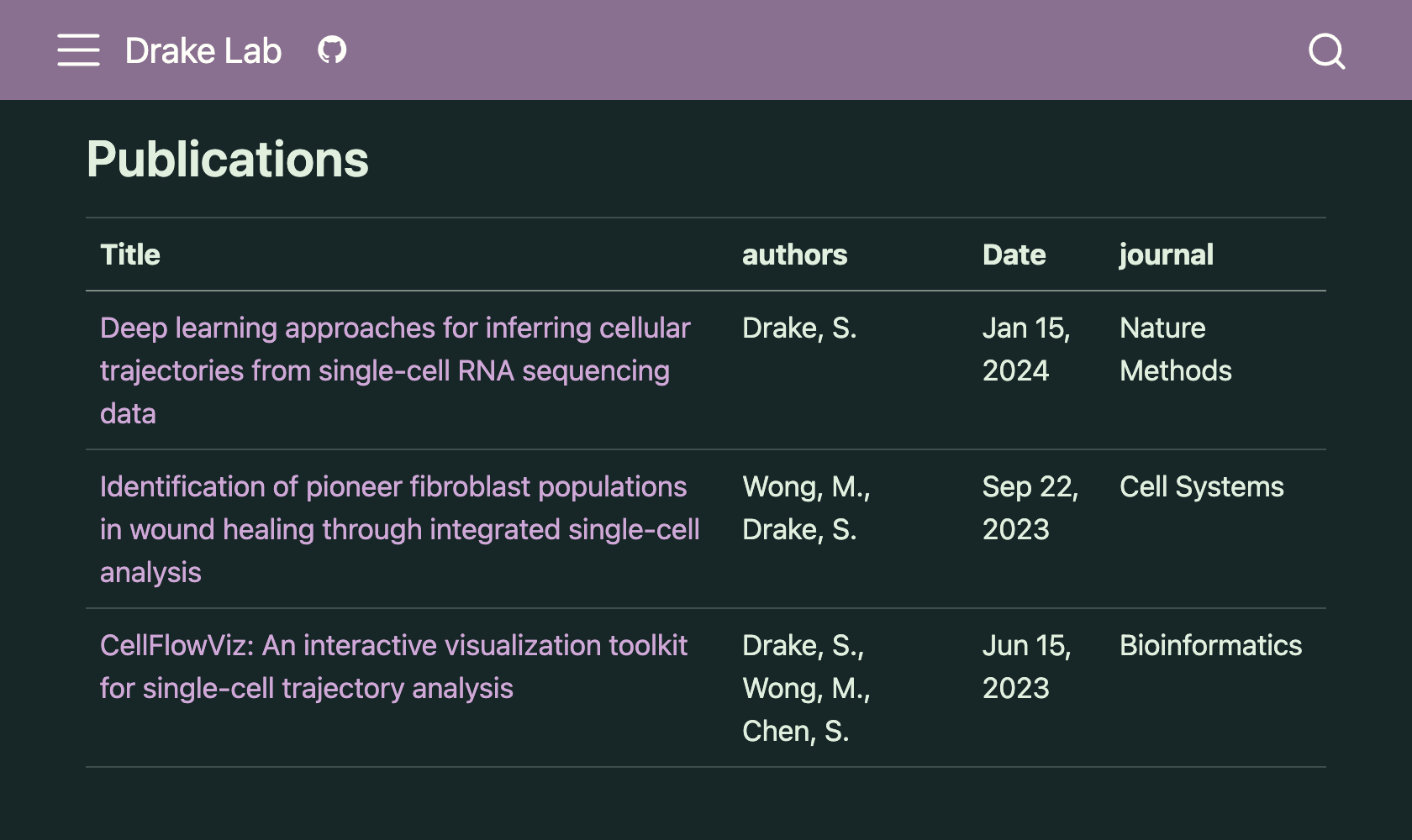
See more examples at: https://charlotte.quarto.pub/listings/
Listing contents: can be a YAML file
Items link to path.
_examples/listing-talks/talks.yml
- date: 2025-03-12
  title: "From Notebook to Production: Deploying ML Models with Confidence"
  description: "A practical walkthrough of taking a model out of a Jupyter notebook and into a reproducible, monitored production pipeline—covering containers, CI/CD, and drift detection."
  venue: "PyData Seattle"
  path: "https://example.com/talks/notebook-to-production"

- date: 2024-11-08
  title: "The Art of the Reproducible Report"
  description: "Why your analysis should run end-to-end with a single command, and how literate programming tools like Quarto make stakeholder-ready reports painless."
  venue: "posit::conf"
  path: "https://example.com/talks/reproducible-report"

- date: 2024-06-04
  title: "Causal Inference for the Skeptical Analyst"
  description: "Correlation isn't causation, but we can do better than throwing up our hands. An accessible tour of difference-in-differences, propensity scores, and when to trust them."
  venue: "useR! Conference"
  path: "https://example.com/talks/causal-inference-skeptical-analyst"
Listing contents: can other pages
Items link to page.
projects/coastal-sensors.qmd
---
title: "Coastal Sensor Network"
description: "Real-time monitoring of water quality along the Oregon coast using a fleet of low-cost IoT sensors."
image: images/photo-1601698832159-665cbefd11da.jpg
categories: [IoT, Time Series, Dashboards]
---

## Overview

Placeholder content. This project deploys a network of sensors that stream
temperature, salinity, and turbidity readings into a central pipeline, surfaced
through a live dashboard for researchers and the public.

Photo by [Karsten Winegeart](https://unsplash.com/@_karsten) on [Unsplash](https://unsplash.com/photos/_m-Xjo9R_y4).
Your turn: Brainstorm a listing
Brainstorm a list of content you might want to include in your website.
What are the key pieces of information for each item? E.g.
title,description, … etc.Does it make sense to give items each their own page, or to use a YAML file?
See more examples at: https://charlotte.quarto.pub/listings/
Adding a listing page
A listing page is a regular page that uses the listing option.
Your turn: Add a listing
Drag the content of one of
_examples/listing-projects/or_examples/listing-talks/into your website.Edit at least one item to match your listing idea.
Edit the listing page
talks.qmd/projects.qmdto reflect your list.Play with some of the
listingoptions.
Listing documentation: Types and Options
Your turn: Keep building!
Keep tweaking the content of pages
Delete pages you don’t want (and delete any related nav from
_quarto.yml)Double-check
_quarto.ymlPublish any updates
Wrap Up
Quarto Websites
A minimal website only needs two files:
Building a website
- Add pages by adding Quarto documents
- Control navigation, website settings, etc. in
_quarto.yml - Control colors and fonts in
_brand.yml - Two special kinds of pages: listings and about pages
Learning more
- Quarto websites documentation: https://quarto.org/docs/websites/
- Websites chapter in (in-progress) book: https://quarto-tdg.org/websites.html
- Websites video series: https://opensource.posit.co/blog/2024-12-04_websites-workshop/
- Learn from other people’s website source: https://quarto.org/docs/gallery/#websites
Q&A
Post Work
Share your URL in Slack
Ask questions in Slack